


Piclux: AI Photo Studio
3.925.00 Reviews
App Specs
- Version
- 2.7.0
- Updated On
- License
- Free
- Downloads
- 5,000,000+
- Developer
- ATQ - AI Lab
- Categories
- Art & Design
- Platform
- Android
Screenshots
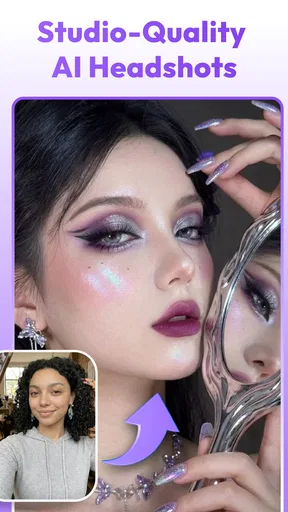
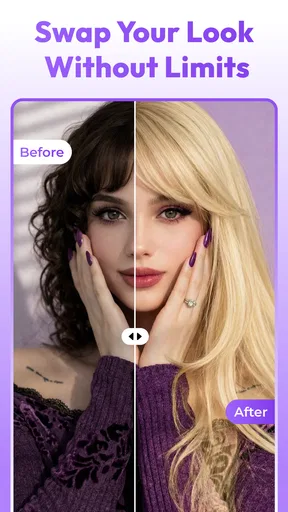
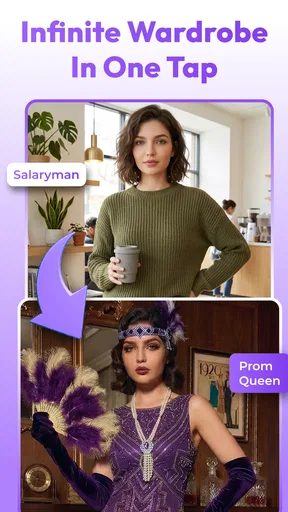


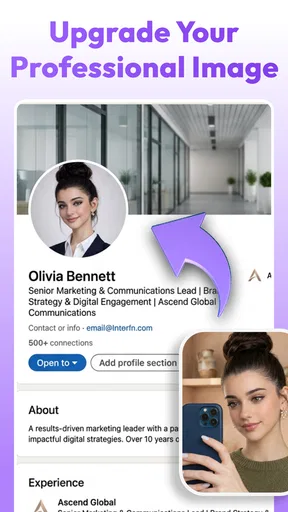
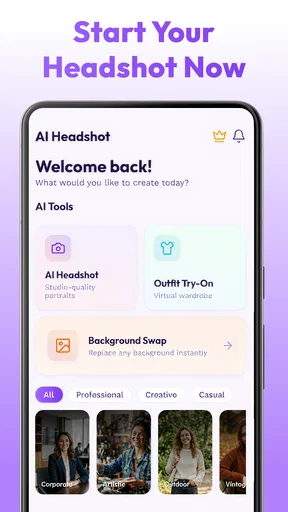
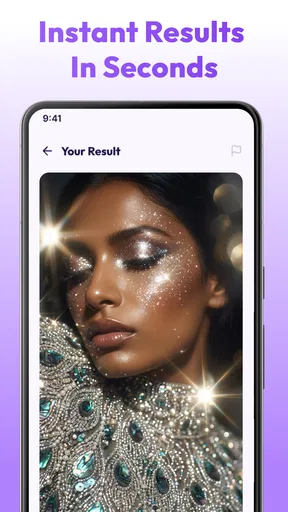
 Analysis by AppCompare
Piclux: AI Photo Studio is the kind of creative app I’d reach for when I need a polished portrait quickly, not when I want to spend an afternoon carefully retouching every detail. Its focus is practical: turn a personal photo into a more professional-looking image, experiment with clothing changes, or make a short AI video from a still. That makes it appealing for profile pictures, casual social posts, and quick visual ideas, though the results still depend heavily on the photo you start with.
In my view, the most useful way to approach Piclux: AI Photo Studio is as a fast first draft rather than a replacement for a photographer or a full editing suite. It sits in the art-and-design space, but its appeal is less about drawing tools and more about using AI to transform portraits. If you want to test a new look or make a usable headshot without learning a complicated editor, that narrow focus can save time.
What Piclux is like to use now
I find the best way to judge Piclux is to begin with the job you actually need done, then see whether its quick transformations help without changing the person behind the photo. This section looks at its present-day role and the small choices that make a first test more revealing. I’d pay particular attention to how well the result holds up beyond the preview, since that is where a convenient edit either earns its place or falls short.
Quick portrait work, with realistic expectations
The app is free to install and is developed by ATQ - AI Lab. Its current version is 2.7.0, and it has an average rating of 3.9 from around 7,200 ratings, with over 5 million installs. Those figures suggest a sizeable audience, but they don’t guarantee that every generated portrait will look convincing. AI image editing is sensitive to lighting, pose, hair, and how clearly the original subject is framed.
For a professional headshot, I would begin with a straightforward photo: one person, face visible, even lighting, and no distracting objects crossing the shoulders. That choice is more important than trying to rescue a blurry or heavily filtered picture. If the source image has unusual shadows or a strong side angle, the generated result may look less natural, especially around the jawline, hair, or clothing edges.
A useful workflow is to keep the original image untouched, make one transformation at a time, and compare the result at normal viewing size before deciding whether it is ready to share. A portrait can look impressive in a small preview but reveal odd texture or a softened facial feature when enlarged. I would not use an AI result for an official document or any situation where an unaltered likeness is required.
Three jobs, three different standards
Headshots, outfit experiments, and photo-to-video creation may all start from the same image, but they have different goals. For a profile photo, likeness matters most: the image should still look like you. For clothing changes, the main test is whether the garment fits the pose and body outline without visibly blending into the background. For a video, motion should feel intentional rather than distracting. I’d judge each result by its purpose instead of expecting one tap to produce a finished asset for every use.
Worth Reading Before You Choose

Flipboard Shows What News Apps Must Do Beyond the Feed

Switching to Android Auto Means Rethinking Your Driving Routine

Google Calendar Makes a Crowded Week Easier to Manage

Ludo King Makes the Most of the Minutes Between Plans

Baby Panda World Brings Quick Play to Modern Phones, but Its Game Library Feels Busy

ESPN’s Live Game View Makes Following Close Games Easier
One practical tip is to choose the source image around the result you want. A chest-up photo gives an outfit transformation less room to invent, while a wider frame can make a changed outfit easier to read. Conversely, if the goal is a clean avatar, a close, well-lit portrait is often a better starting point than a full-body shot. This simple adjustment can prevent wasted attempts and makes it easier to tell whether the app’s treatment is actually helping.
For video from a photo, I’d keep expectations modest and use it for lightweight social content or a playful visual test. A still image does not contain the full information of a recorded clip, so generated movement can feel artificial when the subject’s pose is complicated. If you need precise gestures, product demonstrations, or footage that must match a real event, a camera recording or a dedicated video editor is the safer choice.
Where it fits among photo editors
Compared with a conventional photo editor, Piclux is geared toward transformation rather than hands-on control. Traditional editing apps are usually better when I want to adjust a specific blemish, tune color precisely, preserve a particular texture, or control every crop and layer. Piclux is more attractive when I want to explore a changed look quickly without building the edit from scratch.
It also differs from a portrait photographer’s workflow. A photographer can shape lighting, expression, pose, and background at capture time; an AI tool can only interpret the pixels it receives. For a casual account profile or a mock-up, that trade-off may be worth it. For a company bio, press page, or job application where trust and recognizability matter, I’d use a real portrait or a careful manual edit if possible.
Useful everyday situations
Imagine updating a profile after changing jobs, but the only recent photo is a casual picture taken at home. I’d try a well-lit crop in Piclux, compare a professional-looking version with the original, and ask someone who knows me whether the result still feels like me. If it passes that test at full size, it could be a convenient temporary portrait; if the face seems subtly altered, I’d choose another source image rather than keep pushing the same one.
Another sensible use is planning an outfit concept before a social event or a personal project. A generated clothing variation can help you decide whether a general style suits the image, but it cannot tell you how a real garment will fit or feel. Treat it as visual inspiration, not a reliable preview of an item you intend to buy. That distinction keeps the tool useful without asking it to answer a question it cannot settle from a photo alone.
For creators, a photo-based video can add movement to a post when there is no clip available. I’d use it as a small accent, then check the animation on the device where it will be shared. If it looks strange in motion, a static portrait is often more professional than an awkward animated version. The ability to make a moving image is not automatically an improvement over a still one.
Changes, costs, and the trade-offs to weigh
I’d separate what can be established about the app’s current release and pricing from what I would merely hope to see in future updates. For existing users, the practical focus is whether their own images still produce worthwhile results and whether a paid option makes sense for their routine. I’ll also weigh the situations where a manual editor or an authentic photo remains the safer, more useful choice.
What the current version tells existing users
Version 2.7.0 is the current release, and Piclux was released on April 8, 2026. That gives existing users a concrete point of reference: they can check that they are running the current version before judging how the app behaves. I would avoid assuming that a version number alone means a particular feature has been added or that older edits will look different. The practical question is whether the current app handles your own source photos and preferred output well.
If you already use Piclux, a sensible way to assess an update is to repeat a small, familiar test with the same original portrait and compare the new output with an earlier one you saved. Keep the source image and note which result you preferred. This is more informative than judging from memory, especially when portrait changes are subtle. It also helps separate a genuine change in output from differences caused by choosing a new photo or a different style.
The app is rated for Everyone and requires Android 8.0 or later. That makes it accessible to a broad age range and a range of supported Android devices, but it does not mean every device will offer the same speed or image quality. If processing feels slow or a result is difficult to inspect, I’d first try a smaller, clean source image and make sure the device has enough room to handle the edit.
Free to start, but watch the purchase boundary
Piclux is free to download, while in-app purchases range from $6.99 to $89.99 per item. That is a wide enough span that I would explore the free experience before spending anything. The key question is not simply whether a feature sounds appealing; it is whether the output is consistently useful for your own photos and whether you expect to use it often enough to justify paying.
Before confirming a purchase, check the exact item and its price in the app. I would also avoid paying just to improve one weak result: first try a better-lit source, a simpler pose, and a tighter crop. If the same limitation appears across several suitable portraits, then it is more likely to be a mismatch between what you need and what the app can deliver, rather than a problem solved by buying more.
The app has 25 written reviews alongside its larger rating base. I wouldn’t treat either number as a substitute for testing the workflow yourself: people may use very different photos and judge “professional” by different standards. A quick personal trial is particularly valuable here because portrait generation is subjective. The best result for a playful social post may not meet the standard you’d want for a work profile.
Where the experience can fall short
The central limitation is that generated edits can change more than the intended detail. A clothing transformation may affect the silhouette, and a headshot treatment may smooth or reshape facial features enough to weaken the resemblance. Those problems matter more when the image represents you in a professional setting. I’d zoom in around the face, neckline, hair, and edges of the clothing before sharing, rather than relying on a flattering thumbnail.
There is also a difference between a polished-looking result and a truthful one. If a portrait is used to represent a real person, I’d keep the styling plausible and avoid edits that imply a uniform, qualification, or appearance the person does not have. For fictional characters, mood boards, or informal creative play, the stakes are lower. For identity-sensitive uses, a lightly edited original is usually the more responsible option.
Piclux may not suit someone who wants manual control over every adjustment or needs dependable consistency across a batch of portraits. A dedicated editor is a better choice for careful retouching, while a camera-first workflow is better when authenticity and predictable detail are essential. The app’s convenience is strongest when speed and experimentation matter more than exact control.
What I’d watch for before relying on it
If you are deciding whether to make Piclux part of a regular workflow, test it with several different source images rather than a single flattering example. Include one straightforward portrait and one image with a more challenging angle or background. That reveals whether the app is dependable for your everyday photos or only impressive under ideal conditions. I’d also save the original and avoid overwriting the only copy of a picture I care about.
For someone new to AI portrait tools, the most useful comparison is not which app promises the most transformations, but which one preserves identity while producing an image that fits the intended context. Piclux’s combination of professional-style portraits, clothing edits, and photo-based video makes it more flexible than a single-purpose headshot tool. A specialist editor may still be better for one narrow task, especially if it offers the level of manual control you need.
My recommendation is cautious but positive: try Piclux if you want quick visual experiments and can judge the output critically. It is particularly suited to casual creators, people refreshing a profile image, and anyone curious about turning a still portrait into a more stylized asset. I would skip it as a sole solution for official portraits, precise retouching, or realistic video production. Used as a convenient creative assistant—not as a guarantee of a flawless result—it can be worth exploring.
Choosing a first test that tells you something
When trying the app for the first time, I’d avoid making a whole set of edits at once. Pick a photo you are comfortable experimenting with, save an untouched copy, and decide in advance what would count as a useful result: a clearer profile image, a believable clothing variation, or a short animated accent. Then judge only that goal. This makes the trial less confusing and helps you distinguish a promising result from one that is merely novel.
For a small business owner, for example, a quick portrait variation might help prepare a draft for a social profile while a proper photograph is being arranged. I would still compare it with the original on the page where it will appear, since a treatment that looks polished in isolation can feel out of place beside candid team photos. If matching an established brand style matters, a conventional editor or a planned photo session gives more control.
Who will get the most from it
I think Piclux makes the most sense for someone who enjoys trying visual ideas, needs occasional portrait refreshes, or wants an easy way to explore a few looks without learning layers and masks. It is less compelling for people who edit images every day and already depend on exact color, edge, and retouching controls. It is also a poor fit if the main requirement is that every output preserve a person’s appearance with photographic accuracy.
One question worth considering before installing is whether you need an image that is merely attractive or one that must be dependable as a record of reality. For an informal profile, a creative post, or a private style experiment, a generated variation may be enough. For applications, credentials, news, or any setting where others rely on the image as evidence, I would choose an authentic photograph instead. That boundary is more important than any particular editing style.
Overall, I’d treat Piclux as a focused creative shortcut: useful when speed and experimentation are the point, and easy to outgrow when precision becomes the priority. Start with a clean source, preserve the original, inspect the face and clothing edges at full size, and only pay if the results prove valuable in your own routine. Those habits make it easier to enjoy the app’s transformations without mistaking an AI-generated finish for a guaranteed professional portrait.
Pros
- Quickly creates polished portraits and creative edits from uploaded photos.
- AI styles make it easy to try different looks without editing skills.
- Useful for profile pictures
- social posts
- and other visual projects.
- A simple workflow helps beginners get started quickly.
- Offers a convenient way to explore AI-powered photo transformations.
Cons
- Results can vary depending on the quality and angle of the source photo.
- Some styles may produce edits that look artificial or inconsistent.
- Processing may take longer when servers are busy or images are complex.
- Advanced features or additional generations may require payment.
- Uploading personal photos may raise privacy concerns for some users.
FAQs for Piclux: AI Photo Studio
What is Piclux: AI Photo Studio?
Piclux: AI Photo Studio is a photo-editing app focused on using artificial intelligence to transform and enhance pictures. Depending on the tools available in your version, you may be able to create stylized portraits, apply visual effects, or make other AI-assisted edits. Features and results can vary by app version, device, and subscription, so check the current app listing for the exact tools offered.
Is Piclux: AI Photo Studio free to use?
The app may be available to download at no upfront cost, but some features, image-generation credits, or editing tools may require payment or a subscription. Before starting a trial or confirming a purchase, review the price, billing period, renewal terms, and cancellation instructions shown in the app store and within Piclux. Availability of free features can also change with updates.
How do I create an AI-edited image in Piclux?
Typically, you begin by selecting or uploading a photo, then choose an AI effect or editing option and follow the on-screen instructions. Some tools may ask you to select a style or provide a prompt, and processing can take time depending on the image and your connection. For the most consistent results, use a clear, well-lit picture and check the app’s current guidance before submitting it.
Does Piclux: AI Photo Studio protect the photos I upload?
Privacy practices depend on how the app processes and stores images, so consult Piclux’s privacy policy and the data-safety details on its store page before uploading personal photos. Check whether images may be sent to online servers, retained, or used to improve services, and review available deletion controls. Avoid uploading sensitive images unless you understand and accept the app’s stated data practices.
Can I use Piclux: AI Photo Studio on any Android or iOS device?
Compatibility depends on the device, operating-system version, and the app’s current requirements. Check the Google Play or Apple App Store listing for supported versions, regional availability, and any hardware or account requirements before downloading. AI processing may rely on an internet connection, and older devices may run slowly or lack access to certain features, even when the app can be installed.


